Build Your First Workflow in one Day

A step-by-step walk-through, from a new inquiry to a ready-to-send reply.
We've talked about automation, templates, follow-ups, and AI assistants.
Today, let's put a few of those pieces together into one working system.
By the end of an afternoon, you can have a simple workflow running that handles new inquiries with much less manual work.
━━━━━━━━━━━━━━━━━━━━
🔄 WHAT A WORKFLOW REALLY IS
A workflow is simply a series of steps that happen in order to get something done. When some of those steps run automatically, it becomes an automated workflow.
Here's the example we'll build: what happens when a potential customer fills in the contact form on your website.
Without a workflow: you notice the email (eventually), copy their details somewhere, write a reply from scratch, and try to remember to follow up.
With a workflow: their details are saved automatically, a draft reply is prepared, and a follow-up reminder is set. You review and send.
━━━━━━━━━━━━━━━━━━━━
🛠️ BUILD IT STEP BY STEP
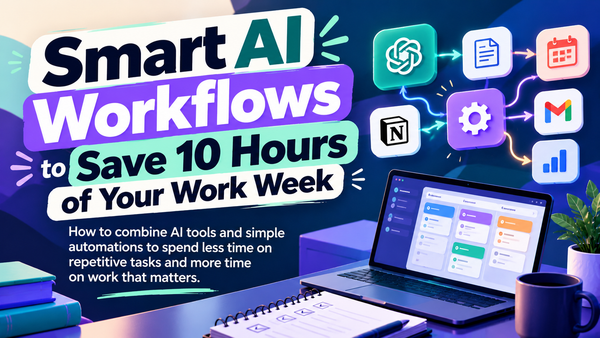
Here's how to build it, step by step. The tool names are examples. Most automation tools, like Zapier or Make, can do something similar.
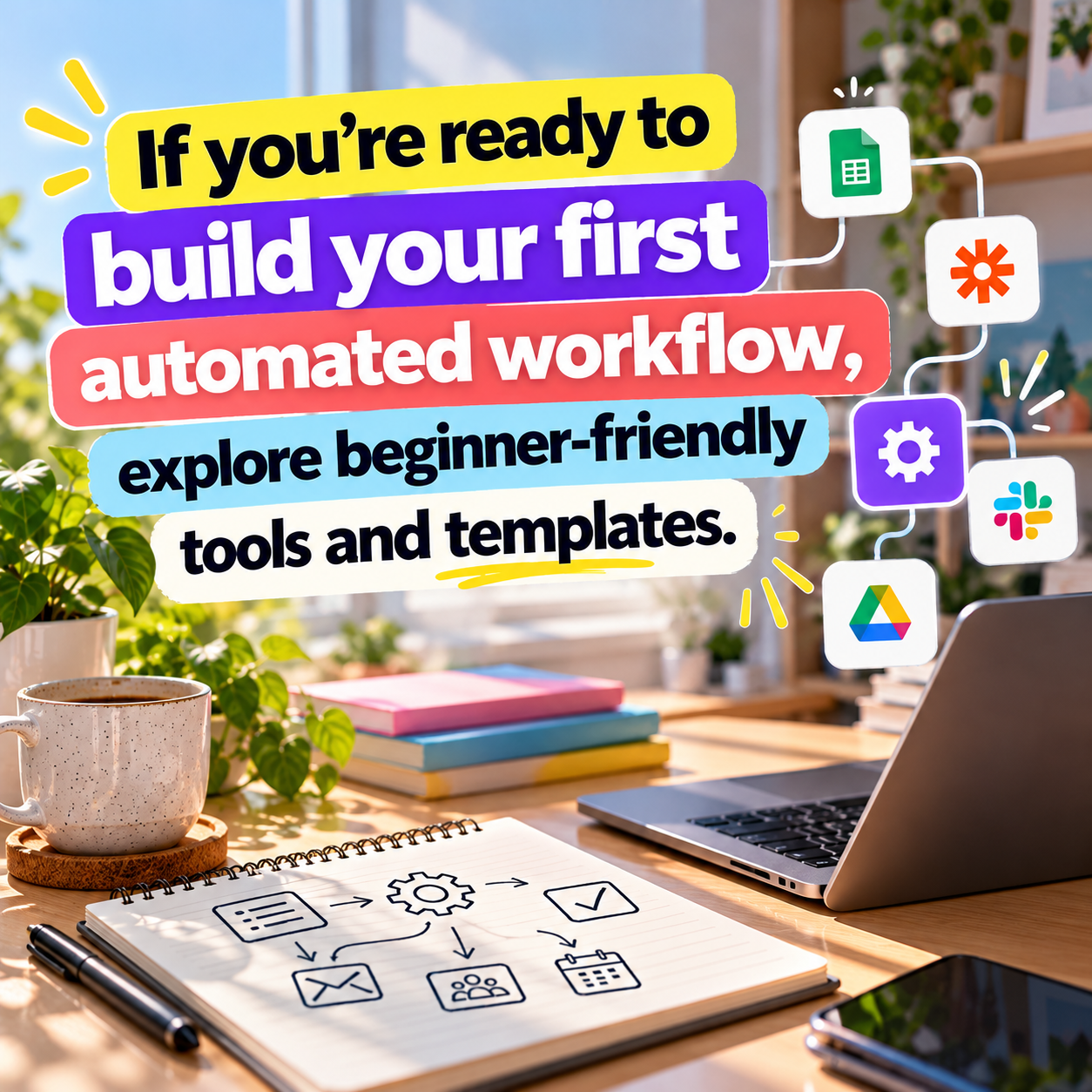
Step 1: Map it on paper. Write the trigger ("new form entry") and each step after it. Keep it to four or five steps.
Step 2: Set up the trigger. In your automation tool, connect your form tool, whether that's your website builder's form, Google Forms, or another tool, and choose "new submission" as the trigger.
Step 3: Save the details. Add an action that creates a new row in a spreadsheet with the person's name, email, request, and date.
Step 4: Prepare a reply. Add an AI step, which many automation tools now offer, that takes their message and drafts a reply based on your template and a short description of your business. Have it saved as an email draft, not sent automatically.
Step 5: Set a reminder. Add an action that creates a task or calendar reminder three days later: "Follow up with [name]."
Step 6: Test it. Fill in your own form with a realistic fake inquiry. Check that every step worked and the draft reads well.
Now, when an inquiry arrives, you open a ready draft, adjust a sentence, and hit send. The record and reminder are already taken care of.
✅ KEEP YOUR WORKFLOW RELIABLE
1. Keep a human approval step Saving AI replies as drafts, not sending them automatically, protects you from embarrassing mistakes.
2. Name everything clearly Label your automations, like "Website inquiry, save and draft," so you can find and fix them later.
3. Check it weekly at first Look at what ran and catch errors early.
4. Add steps slowly Once it works reliably, you can add more, like sending a calendar booking link.
🚀 A SIMPLE WAY TO START
Grab a sheet of paper and map out how one type of request currently moves through your business, from arrival to completion.
Circle the steps that happen the same way every time. Those are the steps to automate first. Build just the trigger and one action this week, and add more once it works.
❯❯❯❯ Want step-by-step guidance for connecting your apps? Discover resources that walk you through it.
📌 NOTE
Automations that connect your accounts need access to them.
Use strong passwords, turn on two-step verification, and only grant the permissions each step needs.
Remove automations you no longer use, so old connections don't linger.
KEY TAKEAWAY ⤵
A workflow is just steps in order, with some running on their own.
Map it on paper, keep a human approval step, and test before you trust it.
Build it once, test it twice, and let it work while you do something better.
- AI Business Builder